
DesktopAlive / Snake / How to use
How to use DesktopAlive Snake
DesktopAlive Snake is desktop software for Windows 10 and 11. A realistic snake crawls along your taskbar, across all your monitors, and reacts when you touch it with the mouse. It can also be your timer. This guide goes through the window button by button. The orange numbers in each picture match the list below it.
Install and open it
- Download it from the DesktopAlive Snake page and run the setup.
- Windows may say it does not recognise the program, because it is new and not yet signed with a publisher certificate. Continue only if the file came from this website or our GitHub page.
- Open DesktopAlive Snake. Its window opens, and a small snake icon sits next to the clock. Click that icon any time to open the window again.
The window
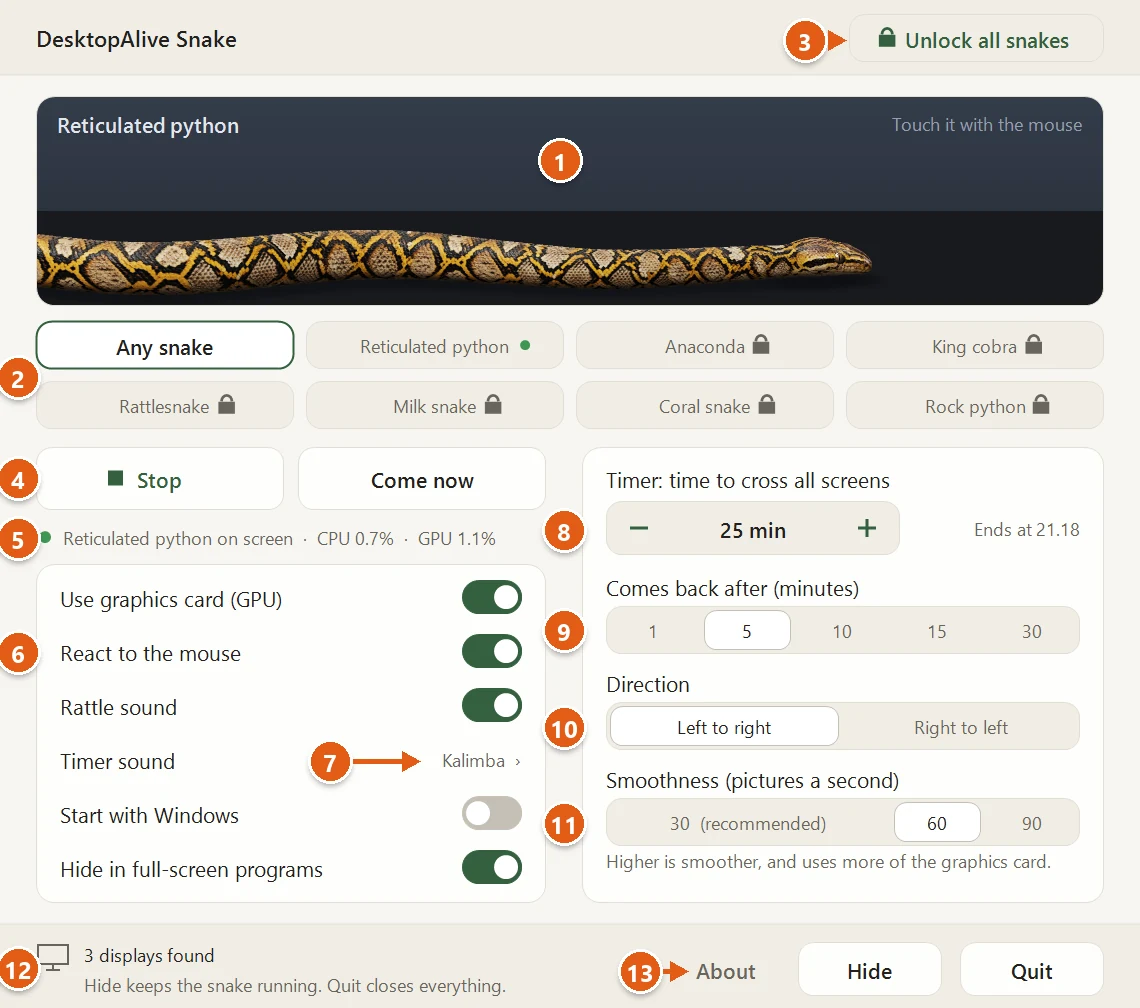
- Live preview. The chosen snake crawls here. Touch it with the mouse to see how it reacts.
- Snake buttons. "Any snake" lets the program pick a different one each time. Or pick one. A green dot shows which snake is out now; a padlock means it still has to be unlocked.
- Unlock all snakes. Opens the offer to unlock the six other snakes. After unlocking it says "All snakes unlocked".
- Stop / Start and Come now. Stop takes the snake off the screen and keeps it away. Come now sends the snake out at once, without waiting.
- Status. Which snake is out, and how much of the processor (CPU) and graphics card (GPU) it uses right now.
- Switches. Use graphics card (needed for 60 and 90 pictures a second). React to the mouse. Rattle sound (the rattlesnake's soft buzz). Start with Windows. Hide in full-screen programs (films, games, presentations).
- Timer sound. The sound that plays when the time is up. Click it to choose; see the next picture.
- Timer. How long the snake takes to cross all your screens, from 1 minute to 12 hours. Use - and +, or the mouse wheel. Next to it you see when the time ends.
- Comes back after. After the tail has left, the snake returns after 1, 5, 10, 15 or 30 minutes, and the timer starts again.
- Direction. Left to right, or right to left.
- Smoothness. 30 pictures a second with the processor; 60 or 90 with "Use graphics card" switched on.
- Displays. How many monitors were found. The snake crosses all of them, one after another.
- About, Hide and Quit. About shows the version, the links and your licence. Hide closes the window and keeps the snake running. Quit closes everything.
Use it as a timer
The snake is the timer: its head comes in when the time starts, and when the tail leaves the last screen the time is up. It keeps to the clock even if you touch it, hide it in a full-screen program, or the PC goes to sleep.
- Set the timer (8), for example 25 minutes.
- Choose a sound under Timer sound (7).
- Press Come now (4). The time starts as the head comes in, and the window shows when it ends.
- Work until you hear the sound. The snake comes back after the break you set (9) and the next round starts.
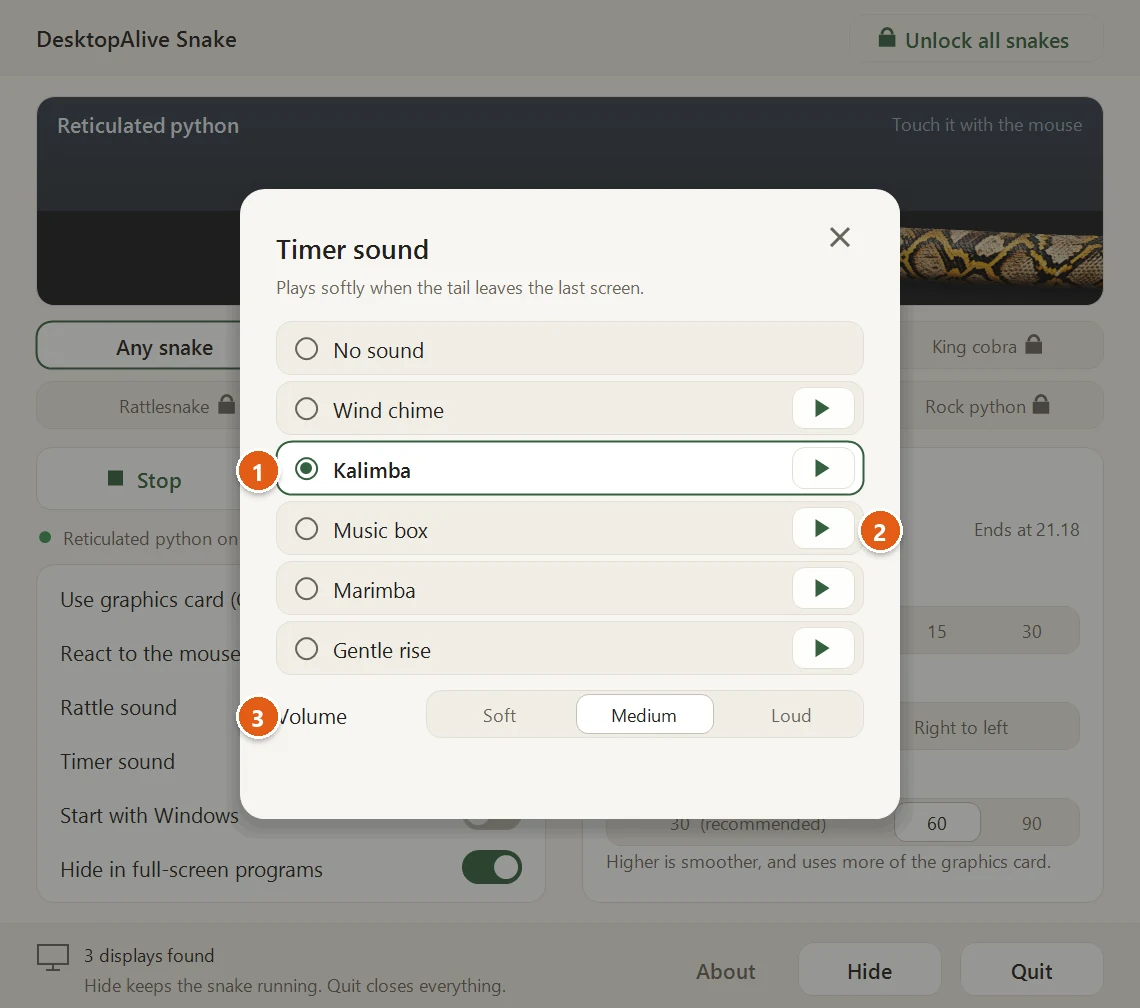
- Choose a sound: wind chime, kalimba, music box, marimba or gentle rise. Or "No sound".
- Play lets you hear a sound before you choose it.
- Volume: soft, medium or loud. Your Windows volume counts too.
Ideas for using it: a focus timer for study and a gentle timer for work.
Free and unlocked
The free version is complete, with no time limit: the reticulated python with every setting, the timer and its sounds, Stop and Come now, both directions, all smoothness choices, and all your monitors. Unlocking adds the six other snakes: anaconda, king cobra, rattlesnake, milk snake, blue coral snake and Indian rock python. It is one payment of $2.99 (₹149 in India; taxes may be added), for life, and one key works on 2 of your PCs.
How to unlock all snakes
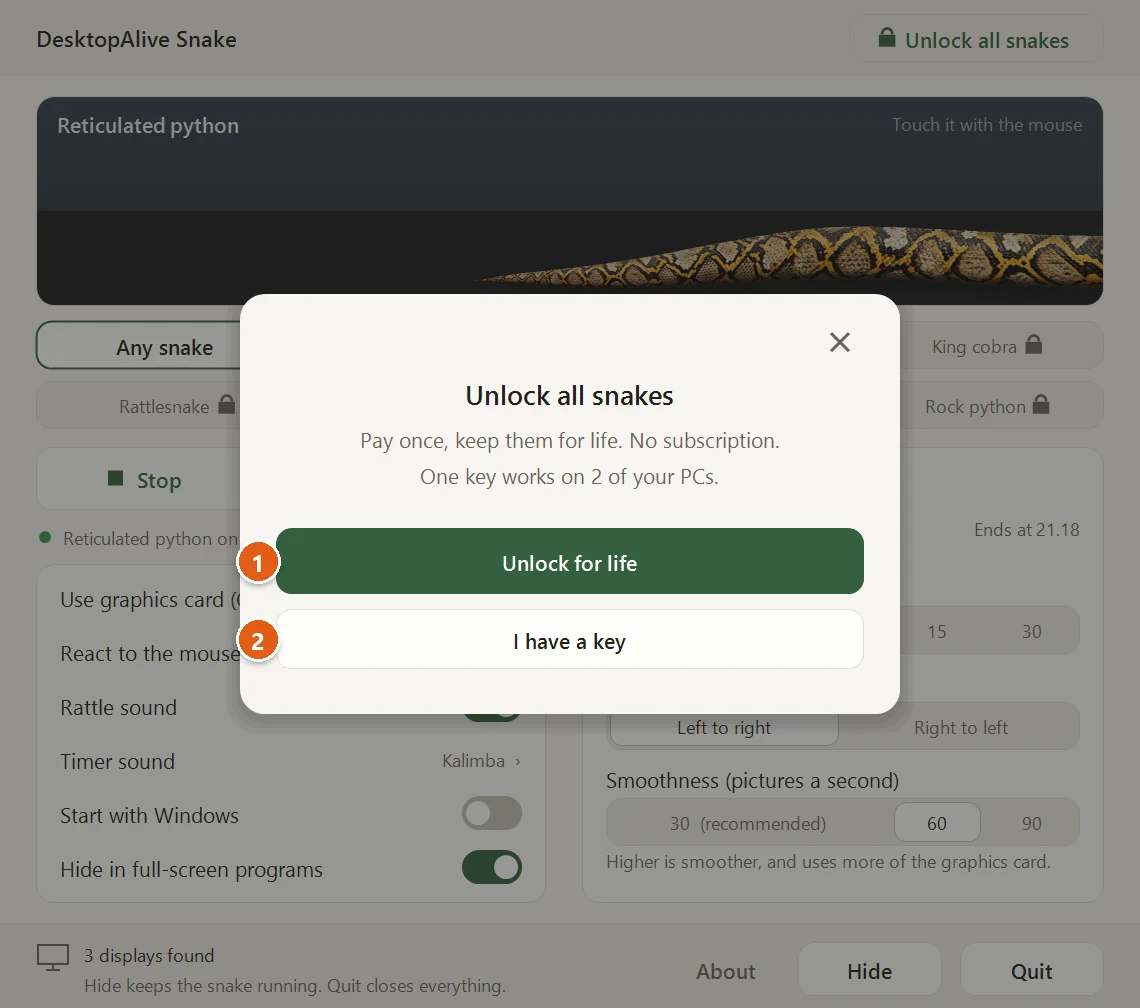
- Unlock for life opens the checkout on our website. Pay there; the key comes to your email.
- I have a key: choose this when the email has arrived.
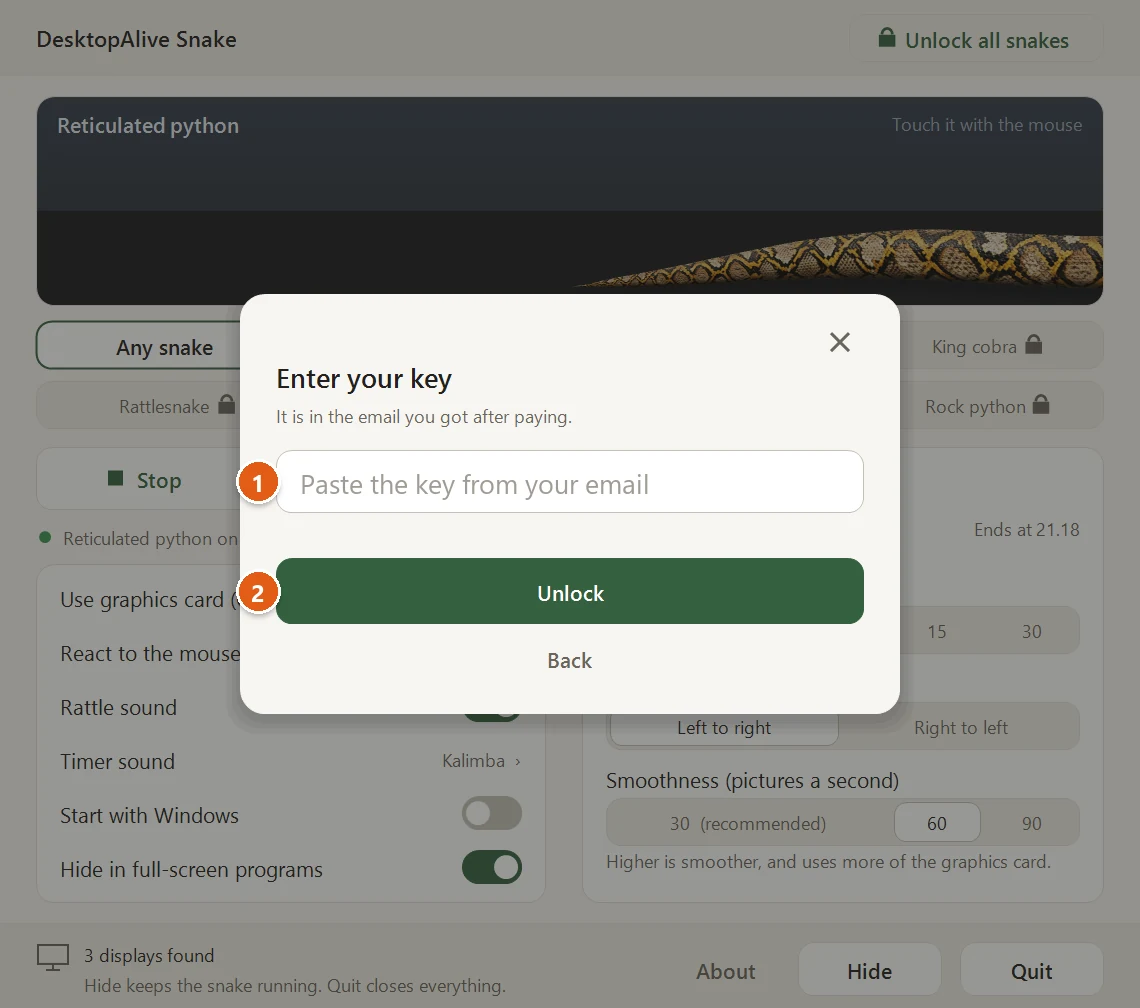
- Paste the key from the email into the box.
- Unlock. The program checks the key once on the internet. After that it works offline.
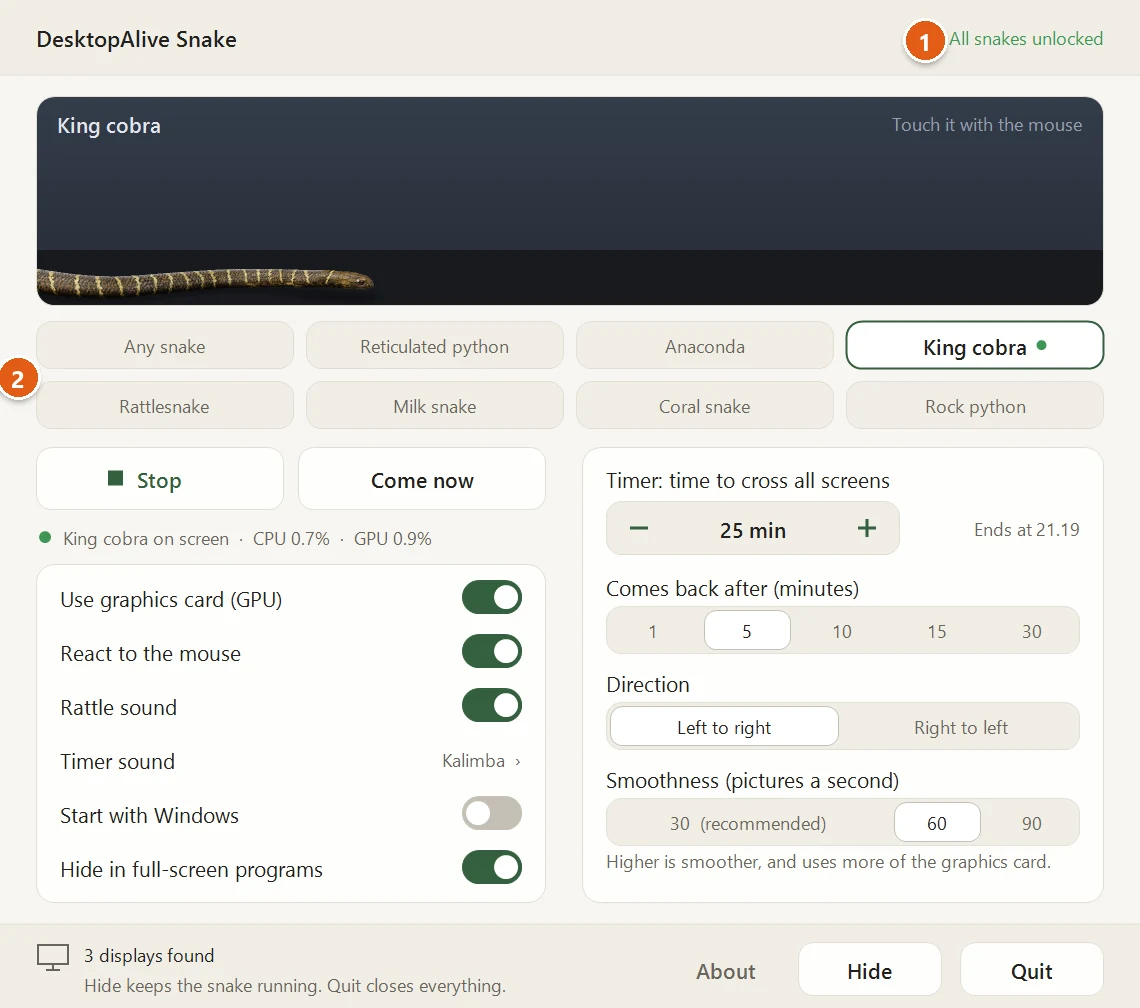
- All snakes unlocked appears at the top.
- Every snake button works now. Pick one, or "Any snake" for a different one each time.
You can also enter a key from About, with "I have a key". Moving to a new PC? Open About on the old one and choose "Remove licence from this PC", then use the key on the new one.
About
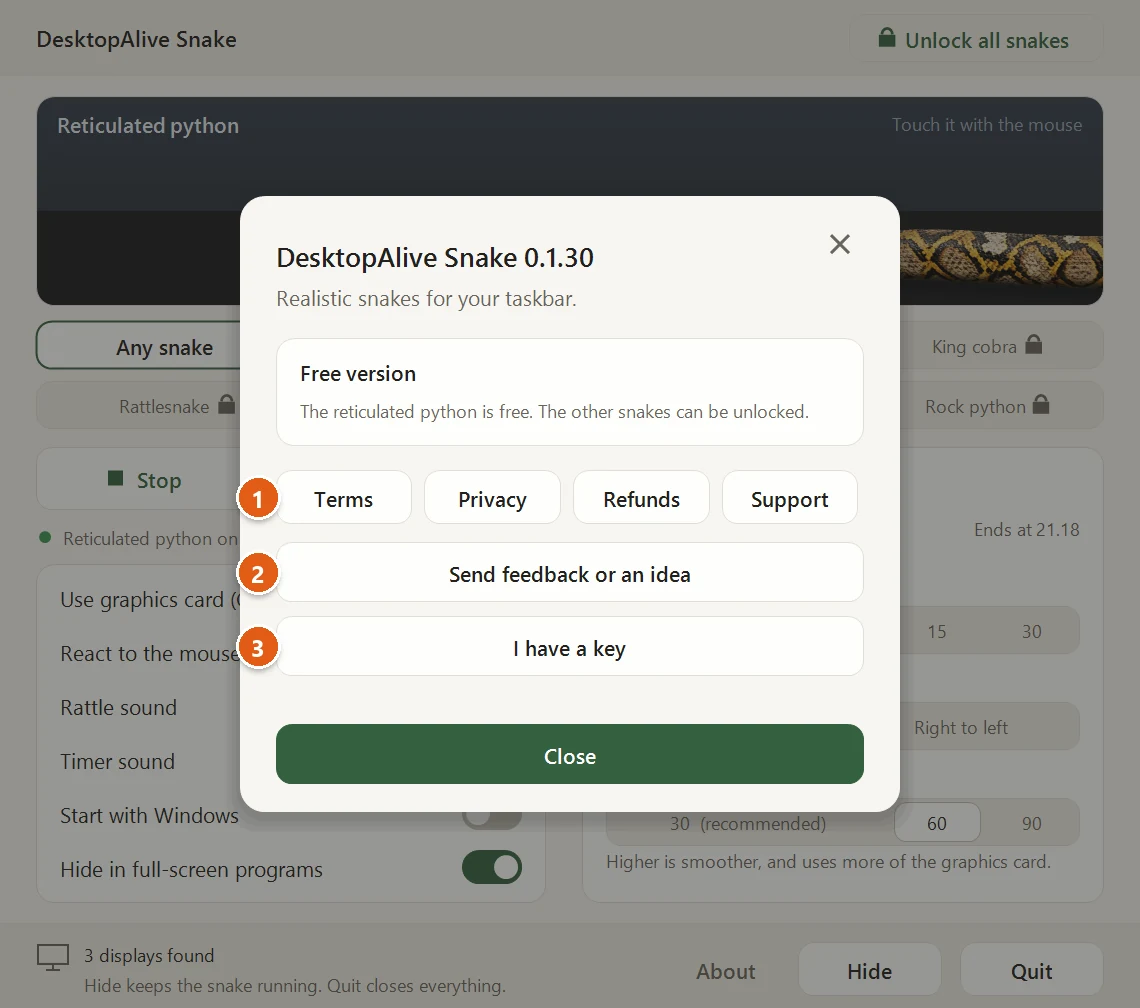
- Terms, Privacy, Refunds, Support open those pages on our website.
- Send feedback or an idea (version 0.1.30 and newer) opens a new email to us. Tell us what you like, what is missing, or which snake you want next. Without an email program, our address (support@desktopalive.com) is copied for you.
- I have a key unlocks all snakes; with a licence this button removes it from the PC instead.
Hide, Quit and uninstall
Hide closes the window; the snake keeps coming. Quit stops everything until you open the program again. Start with Windows is off unless you switch it on. To remove the program: Windows Settings, Apps, DesktopAlive Snake, Uninstall. That also removes its settings and the key saved on that PC.
Questions? Support or support@desktopalive.com.