
A gentle work timer for Windows that does not nag
26 November 2026
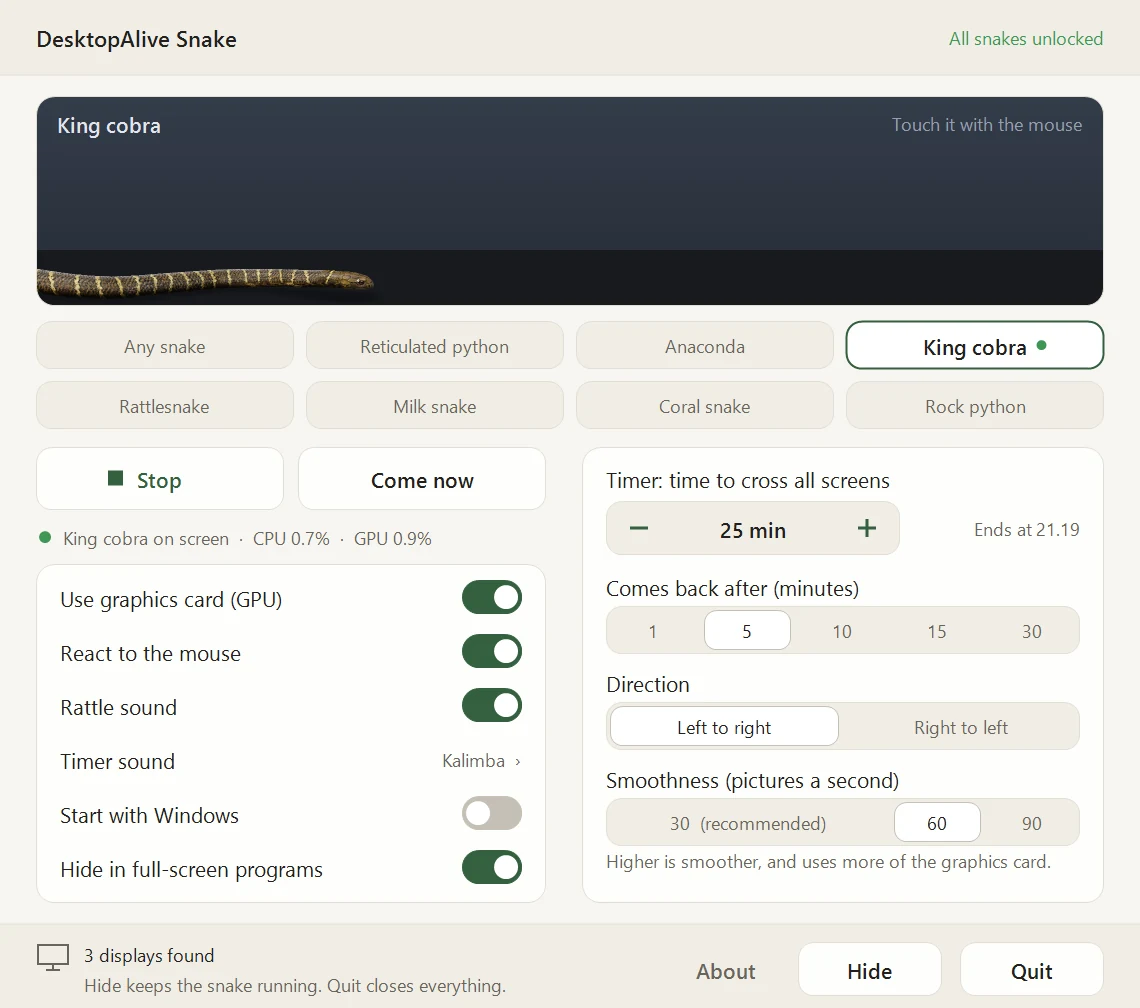
Most timers on a PC beep, pop up, or sit in a corner counting seconds. That is fine for an egg, but tiring for a whole working day. DesktopAlive Snake does it more quietly: a snake crawls along your taskbar for exactly the time you set, and when its tail leaves the last screen, a soft sound plays. Here are a few ways to use it at work.
Five ways to use it
- Focus blocks. 50 minutes of deep work, then 10 minutes away from the screen.
- Rest your eyes. A common tip is to look at something far away for a moment every 20 minutes. Set 20 minutes, choose a soft sound, and look out of the window when it plays.
- Before a meeting. Set the time until the meeting starts; when the tail goes, it is time to join.
- Waiting for something. A download, a build, a delivery window, the washing machine: 1 minute to 12 hours.
- Screen time. Give yourself a fixed time for email or social media and stop when the snake has gone.
How to set it
- Open DesktopAlive Snake and set Timer: time to cross all screens with - and + (or the mouse wheel over it).
- Choose a Timer sound and a volume: soft, medium or loud.
- Press Come now. Next to the timer you see when it ends; so does the menu of the snake icon by the clock.
The how-to guide explains every button with pictures.
It keeps to the clock
The timer follows the real clock, not the snake's mood. If you touch it, it freezes and watches you, then quietly makes up the time. If it is hidden during a full-screen presentation, the time still runs. If the PC goes to sleep and the time ends meanwhile, the sound plays as soon as the PC is awake again.
Does it slow the PC down?
The window shows its own CPU and GPU use while the snake is out. With the processor it draws 30 pictures a second; with the graphics card switched on, 60 or 90. On our test PC a crossing used well under 1% CPU. Your numbers will differ, which is why the window shows them.
The timer and all five sounds work with the free reticulated python. If you want a king cobra or an anaconda to keep time instead, all seven snakes can be unlocked with one payment.