
An aquarium in your Windows taskbar: how to set it up
27 November 2026
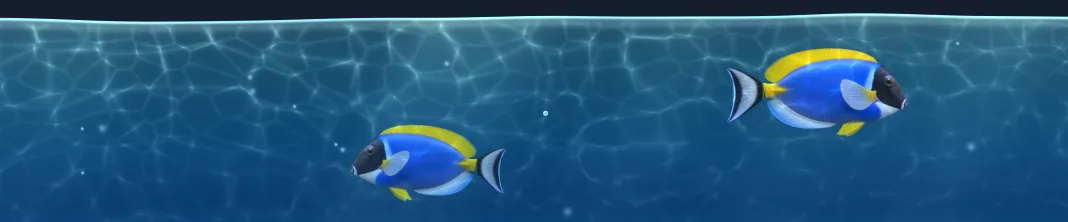
The taskbar is the one strip of your screen you look at all day. DesktopAlive Aqua turns it into a small aquarium: clear water fills it slowly, light plays through it, bubbles rise, and realistic fish swim from one end to the other, across all your monitors. Your taskbar keeps working, because every click goes straight through the water.
Install it
- Download it from the DesktopAlive Aqua page and run the setup. It installs for your user only and needs no administrator rights.
- Windows may say it does not recognise the program, because it is new and not yet signed with a publisher certificate. Continue only if the file came from this website or our GitHub page.
- Open DesktopAlive Aqua. The water starts to fill, and a water-drop icon appears next to the clock. Click it any time to open the window again.
Choose your fish
Each kind of fish has its own card with - and + buttons. The free version has one clownfish. With the lifetime unlock you can add the copperband butterflyfish and the powder blue tang: up to 10 of one kind and 15 fish in all. The live preview at the top shows how each one swims.
Make it look the way you like
- Graphics quality: Low, Medium, High or Ultra. Medium is light on every PC; High adds a second layer of moving light and smoother fish edges.
- Smoothness: 30, 60 or 90 pictures a second. 60 and 90 need "Use graphics card".
- Bubbles: from none to many.
- Water: from still water to waves, currents and swirls. With more movement the mouse and the fish make ripples.
Switches worth knowing
- React to the mouse: move the pointer through the water and it ripples; the fish dart away.
- Hide in full-screen programs: the water drains while you watch a film or play, and comes back afterwards.
- Start with Windows: off unless you switch it on. Then the program waits a few seconds after Windows starts, so your PC can settle, and fills the water slowly.
On a laptop
You do not have to do anything. On battery, or with Battery saver on, DesktopAlive Aqua drops to 30 pictures a second with fewer bubbles, and goes back to your settings when you plug in. When you lock the PC, the screen goes off or the PC sleeps, it pauses completely. The window always shows how much processor (CPU) and graphics card (GPU) it is using.
Stop, hide and quit
Stop lets the fish swim away and the water drain. Hide closes the window and keeps the aquarium running. Quit closes everything. All three are also in the menu of the water-drop icon.