 DesktopAlive
How to get realistic bugs walking on your Windows desktop
26 November 2026
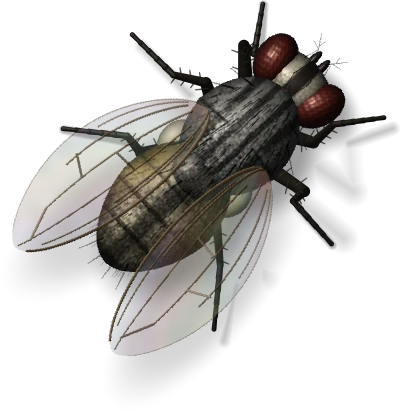
A fly lands on the edge of your window, rubs its front legs together and waits. Move the mouse too close and it is gone. This guide shows how to put that on a Windows 10 or 11 desktop with Makkhi, and how to stop it when you need a clean screen.
Install it
- Open the Makkhi page and press Download for Windows.
- Run the installer and read the terms. Makkhi is not yet signed with a publisher certificate, so Windows may say it does not recognise it. Continue only if the file came from this website or our GitHub page. If your antivirus reports a threat, do not install it, and please tell us.
- Open Makkhi from its icon on the desktop.
- Choose how many flies you want, then press Start.
Start with one
One fly is easy to miss, and that is why it works: you see something move at the edge of your view and look up. A single fly wanders, cleans itself and settles on the edges of open windows. With several, they also chase each other. You can put out up to 12.
Will it get in the way?
Every click goes straight through the insects to whatever is below them. They can hide while a full-screen program is running, and they work across several monitors. The Stop button clears the screen. Quit closes the program completely. It starts with Windows only if you switch that on.
Ants and ladybugs
The fly is free with no time limit. Ants and ladybugs come with a single payment, with no subscription. The ants walk in a line, carry crumbs and scatter when you sweep the mouse through them. The ladybug is the calm one: startle it and it plays dead.
Taking it off again
Go to Windows Settings, Apps, Makkhi, Uninstall. That removes the program, its settings and any key saved on that PC.
One request: install it only on a PC you own or have permission to use, and not to alarm someone who is afraid of insects.